

स्पाइन सर्जरीका अब्बल युवा डाक्टर प्रशान्त अधिकारी
Do you want to boost engagement on your website while showcasing your active social media presence? Embedding a Facebook page on your website is an effective way to deliver your social content to your audience without them leaving your website.
With over 2.8 billion monthly active users, Facebook remains one of the biggest players in the social media market. For content publishers and businesses alike, connecting your Facebook page to your website offers a simple integration between web presence and social activity.
Throughout this comprehensive guide, you’ll learn exactly how to add a Facebook page to your website, make it look great, and get the most out of this integration—all with super-easy, step-by-step directions.
Why Add Your Facebook Page to Your Website?
Before jumping into the technical aspects, let’s discuss the most important advantages of embedding your Facebook feed on your website:
1. Build Social Proof and Credibility
When people view your live Facebook community with actual followers, comments, and interactions, it immediately establishes credibility. This social proof tells potential customers that other Facebook users like what you are offering and value your brand.
Real Impact: According to a survey by EnTribe, 84% of people say they’re more likely to trust a brand that uses content from real customers, and 77% are more likely to buy from them. Your Facebook feed provides this social proof automatically.
2. Display Fresh Content Automatically
Your website will showcase a continuous stream of updated content from your Facebook feed without requiring manual updates to your website.
Time-Saving Benefit: Each time you publish something on Facebook, your latest posts automatically appear on your website too—keeping your site fresh and relevant without any extra work.
3. Boost Engagement and Time on Site
Your website will receive a steady flow of new updates from your Facebook page without you needing to update your site.
Engagement Boost: This interaction increases the average time spent on your website, a key metric for both user experience and search engine rankings. Your visitors can explore your recent Facebook posts, videos, and photos while still viewing your main website content. Semrush states that 53% of marketers notice an increase in engagement after updating old content.
4. Grow Your Social Media Following
By showing your Facebook feed on your website, you are making it simple for your website visitors to find your social media content.
Audience Growth Strategy: Add noticeable follow buttons and calls-to-action near your embedded feed to convert website visitors into social media followers. This creates multiple touchpoints with your audience and saves them the trouble of searching for your pages.
5. Improve SEO Performance
Fresh content you create for your Facebook feed continually signals to search engines that your site is active and relevant.
SEO Benefit: Search engines prioritize fresh web content. By incorporating your Facebook feed, you’re adding fresh content on a regular basis that search engines will crawl and possibly increase your rankings.
6. Save Time on Content Management
Instead of developing separate content for both Facebook and your website, focus on creating Facebook posts that automatically appear on your site.
Efficiency Gain: This single-source content strategy cuts your content creation workload in half while keeping both platforms active.
Methods to Embed a Facebook Page on Your Website
There are two primary methods to add your Facebook page to your website. Let’s compare them:
| Feature | Facebook’s Native Plugin | Social Media Aggregator (Juicer) |
|---|---|---|
| Cost | Free | Free basic plan, premium plans available |
| Customization | Limited options | Extensive styling and layout options |
| Setup Difficulty | Simple (copy-paste code) | Moderate (account setup required) |
| Content Moderation | Minimal | Advanced filtering and moderation tools |
| Performance Impact | Can slow page loading | Optimized loading options available |
| Mobile Responsiveness | Basic | Highly responsive with multiple layout options |
| Multi-platform Support | Facebook only | Can combine multiple social channels |
| Analytics | None | Available in premium plans |
| Update Frequency | Real-time | Configurable (hourly to daily) |
Let’s walk through the complete process of adding your Facebook page to your website using both methods:
Method 1: Using Facebook’s Native Page Plugin
Step 1: Access the Facebook Developer Page Plugin Tool
- Go to Facebook’s Page Plugin tool
- You don’t need a developer account to use this tool
Step 2: Configure Your Plugin
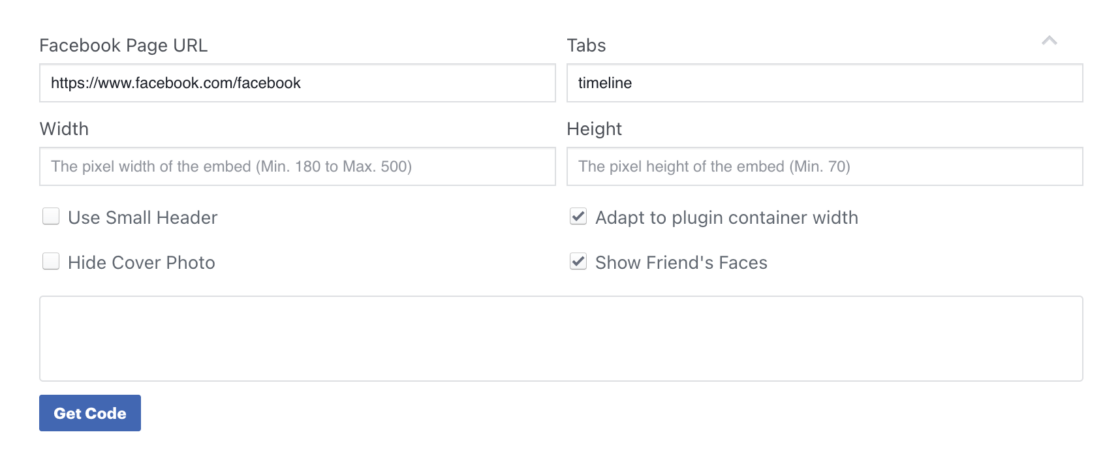
Enter your Facebook Page URL, set width and height parameters, and select display options such as showing friend’s faces, posts from your page, header size, and cover photo visibility.
Step 3: Generate and Copy the Code
Click “Get Code” to generate your embed code, choose between HTML5 or iFrame version (HTML5 is recommended for better performance), and copy both code snippets provided.
Step 4: Add Code to Your Website
Paste the JavaScript SDK code right after the opening <body> tag of your website, place the plugin code where you want the Facebook feed to appear, then save and publish your changes.
Platform-Specific Instructions:
For WordPress site:
<!-- Add to a text/HTML widget or using a custom HTML block in your page editor -->
<div id="fb-root"></div>
<script async defer crossorigin="anonymous" src="https://connect.facebook.net/en_US/sdk.js#xfbml=1&version=v14.0" nonce="YOUR_NONCE"></script>
<div class="fb-page" data-href="https://www.facebook.com/YourPageName" data-tabs="timeline" data-width="500" data-height="700" data-small-header="false" data-adapt-container-width="true" data-hide-cover="false" data-show-facepile="true"></div>
Method 2: Using Juicer for Enhanced Integration
Step 1: Create a Free Juicer Account
Visit Juicer.io, sign up with your email address, create a password, and verify your account through the confirmation email.
Step 2: Connect Your Facebook Page
In your Juicer dashboard, click “Add Social Media Source,” select “Facebook,” authorize Juicer to access your data, and select the Facebook page you want to display.
Important Facebook Page Requirements: Your page must have a custom vanity URL, be set to public, and you’ll need just the username part of your URL (e.g., yourbusiness from https://www.facebook.com/yourbusiness).
Step 3: Customize Your Facebook Feed
In the menu on the left, choose a feed layout style (Grid, Slider, List, or Carousel), customize the design to match your site, adjust default colors and spacing, set the number of posts to display, and configure how your content is shown.
More details :